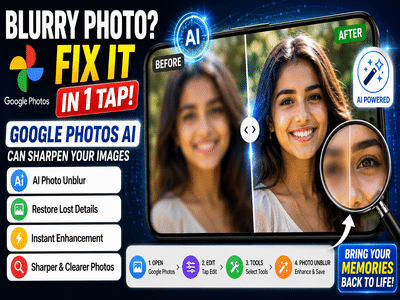
Smartphone cameras have improved dramatically over the years, but even the most advanced devices sometimes capture blurry photos. Whether it's due to shaky hands, poor lighting, motion, or incorrect focus, a great shot can quickly become disappointing when important details appear unclear.
The good news is that you may not need a third-party photo editing app to improve those images. Google Photos includes a powerful AI-based tool called Photo Unblur, designed to enhance blurry pictures and make them appear sharper and more detailed.
If you have old memories, family photos, or important snapshots that didn't turn out as expected, this feature could help bring them back to life with just a few taps.
What Is Google Photos Photo Unblur?Photo Unblur is an artificial intelligence-powered editing feature available within Google Photos. The tool analyzes a photo, identifies areas that appear blurred, and attempts to improve sharpness and clarity using advanced machine-learning technology.
Unlike traditional sharpening filters that simply increase contrast around edges, Photo Unblur uses AI to understand image details and restore visual clarity more intelligently.
While it cannot perform miracles on severely damaged images, it often delivers impressive results on photos with light to moderate blur.
Why Photos Become BlurryThere are several common reasons why images lose sharpness:
- Camera shake while taking the picture
- Subject movement during capture
- Poor lighting conditions
- Incorrect autofocus
- Digital zoom limitations
- Low-quality image processing
In many cases, these issues can make photos appear soft, fuzzy, or lacking detail.
That's where Google's AI-powered enhancement tools can help.
How to Use Photo Unblur in Google PhotosUsing the feature is simple and only takes a few moments.
Step 1: Open Google PhotosLaunch the Google Photos application on your smartphone.
Step 2: Select the Blurry ImageBrowse your gallery and open the photo you want to improve.
Step 3: Tap EditOnce the image is open, select the Edit option located at the bottom of the screen.
Step 4: Go to ToolsInside the editing menu, navigate to the Tools section.
Step 5: Choose Photo UnblurLook for the Photo Unblur option and tap on it.
Step 6: Let AI Process the ImageGoogle Photos will analyze the photo and apply AI-based enhancements.
This process typically takes only a few seconds.
Step 7: Review the ResultsA preview of the enhanced image will appear on your screen.
Compare the original and improved versions to see the difference.
Step 8: Save Your Edited PhotoIf you're satisfied with the result, tap Save or Save Copy to keep the improved image.
What Results Can You Expect?Photo Unblur tends to perform best on:
- Slightly blurred portraits
- Family photographs
- Travel pictures
- Casual smartphone snapshots
- Older images with mild focus issues
The feature can improve:
- Facial details
- Edge sharpness
- Overall clarity
- Fine textures
However, photos that are extremely blurry or heavily damaged may not see dramatic improvements.
Availability and Device SupportIt's important to note that Photo Unblur may not be available on every smartphone.
Google gradually rolls out AI features based on:
- Device compatibility
- Region availability
- Google Photos version
- Google One subscription eligibility
Some advanced editing tools may require a supported device or an active Google One membership.
If you don't see the feature, updating Google Photos to the latest version may help.
Why This Feature Is UsefulMany people have valuable photos that cannot be recreated. Childhood memories, family gatherings, vacations, and special events often exist as a single image.
Instead of deleting blurry pictures, Photo Unblur provides a quick way to improve them without needing professional editing skills.
The entire process can be completed directly within Google Photos, making it one of the easiest AI-powered photo enhancement tools available today.
Final ThoughtsGoogle Photos' Photo Unblur feature demonstrates how artificial intelligence is transforming mobile photography. With just a few taps, users can improve the clarity of blurry images and make treasured memories look significantly better.
While it may not perfectly restore every photo, the tool can deliver noticeable improvements in many situations, making it a valuable feature for anyone who regularly captures photos on a smartphone.
Contact to : xlf550402@gmail.com
Copyright © boyuanhulian 2020 - 2023. All Right Reserved.